

 ParentsMy family: children, group plans, payments
 AthletesYour page: badges, trainings, races
 Coaches and boardClub office: groups, attendance, editing the site
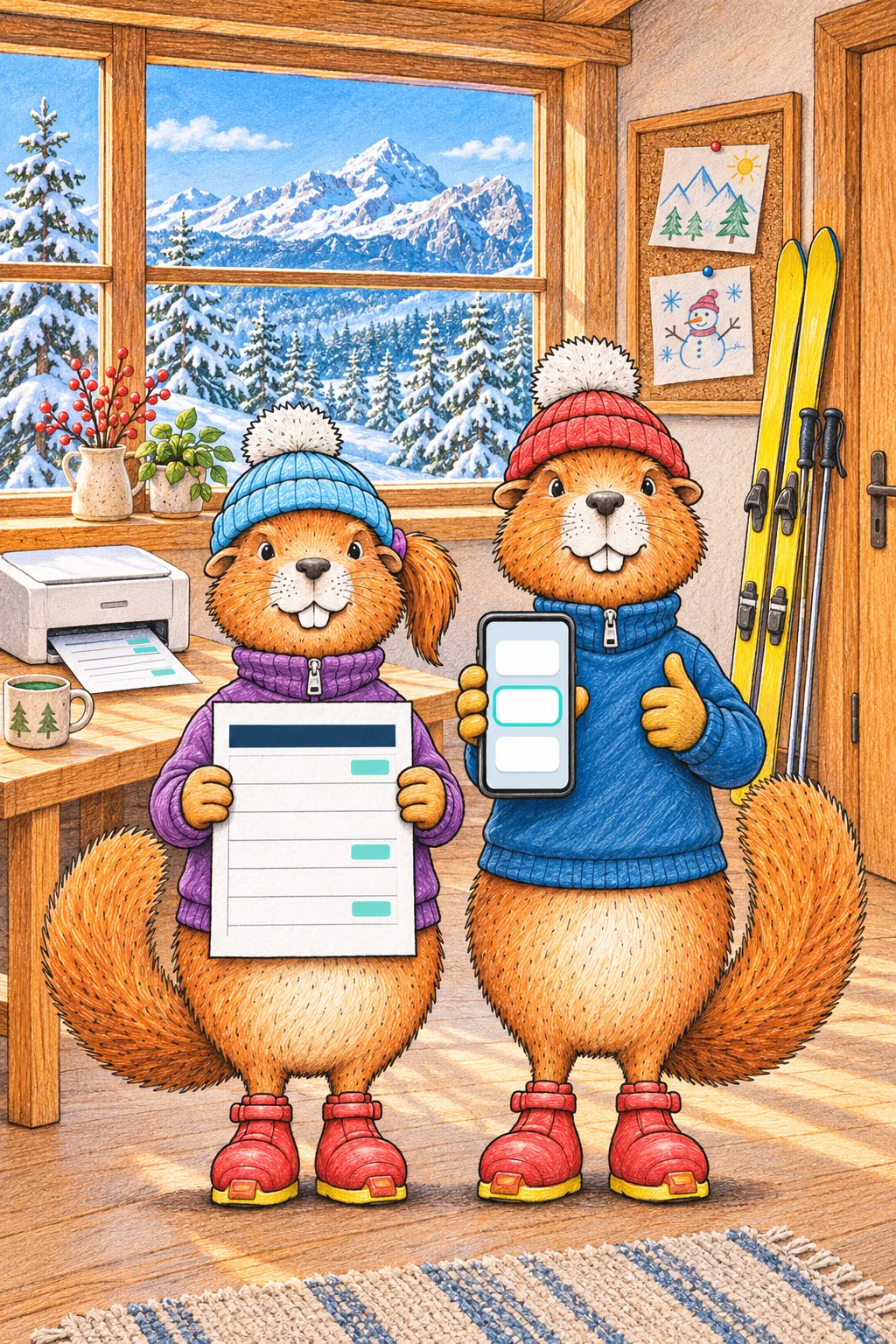
My week: your child's training plan
Your child's page and My family now show just your week: when and where the training is and what the coach changed. One button prints it for the fridge or saves it as a PDF.
Why My week
Only your child's group
Before, the plan came by e-mail as one big table for all groups and you looked for your own row. Now you see only the days of your child's group.
Always the latest version
When the coach corrects the plan, the change is here at once: the day says «Spremenjeno» (Changed) and for example «15:00 → 16:00». No need to look for the latest message.
On paper or on the phone
The button «Natisni ali shrani PDF» (Print or save PDF) makes a neat A4 sheet that prints well on a black-and-white printer too. Or save it as a PDF and send it to grandma.
What you see
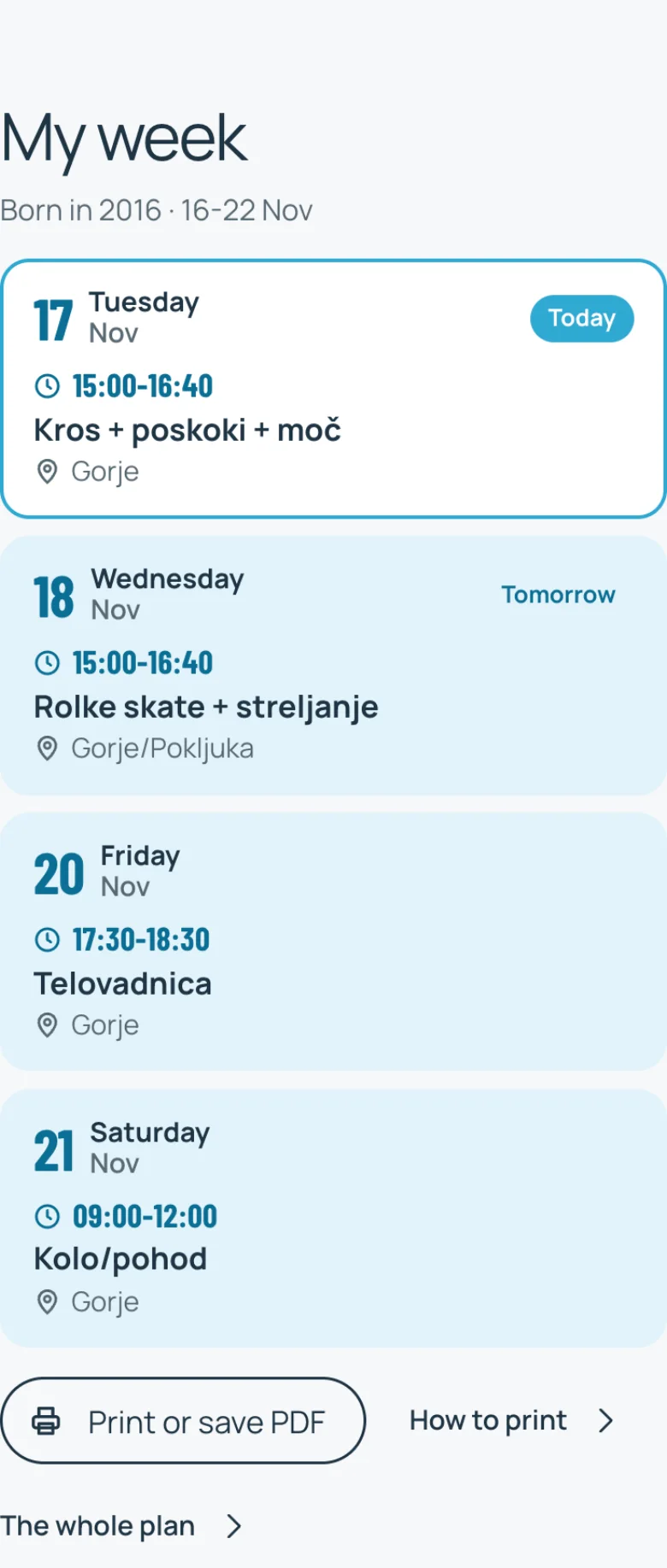
- Only the days with a training. A day without one takes no space.
- Today is framed. Past days are folded, one tap opens them.
- The time, the meeting place and what they will do, as the coach wrote it.
- A coach's message about a day stands at that day (for example «Odpade», Cancelled).
- Once the coach publishes next week, pick it at the top: «Ta teden» (This week) or «Naslednji teden» (Next week).
Where to find it
Your child on their own page
For athletes, the section «Moj teden» (My week), right above «Kaj me čaka». Your child gets in with the code you show them in My family.
For athletesYou in My family
In each child's card. Two children in the same group share one week with both names.
Open My family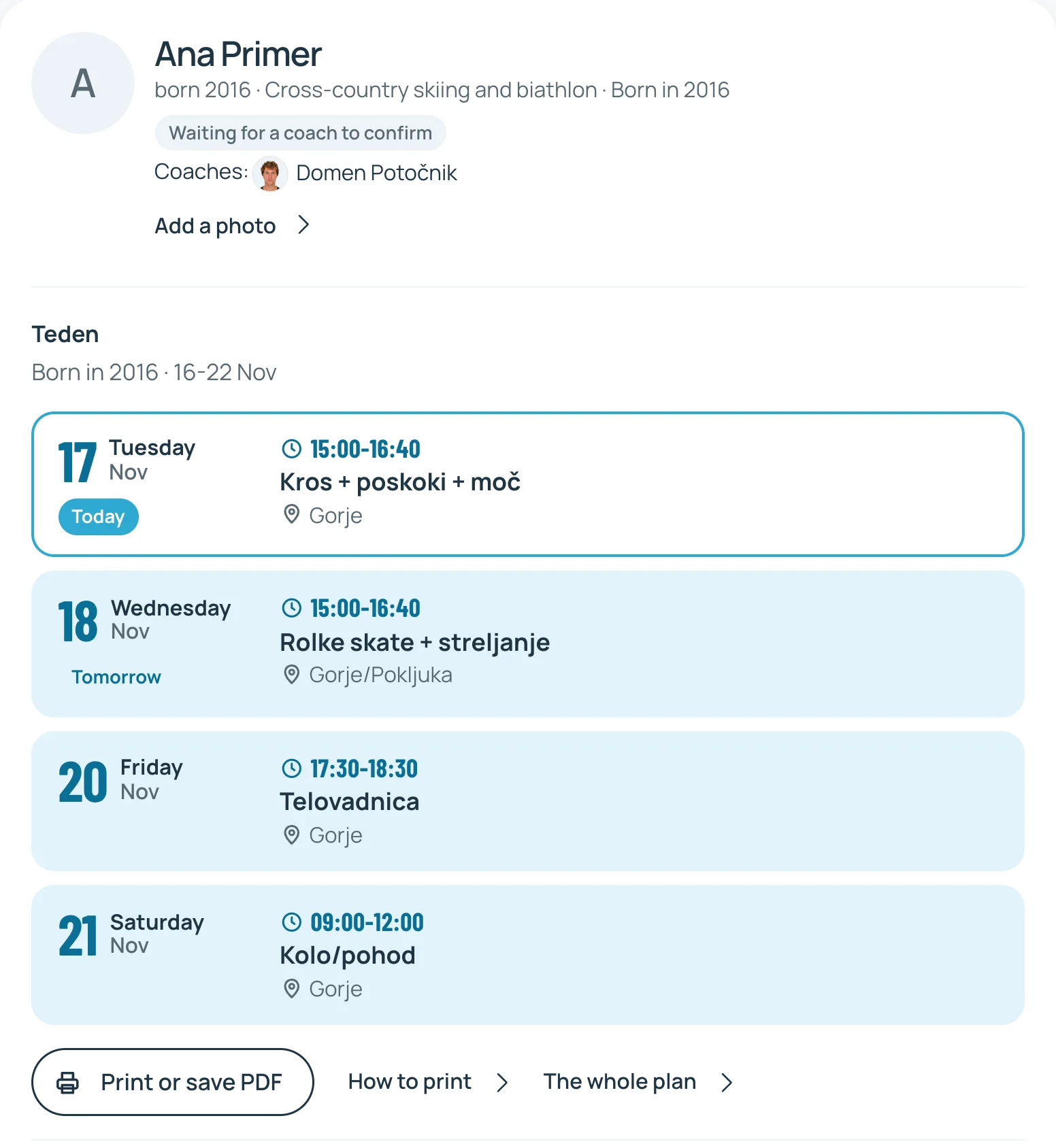
Print or save a PDF
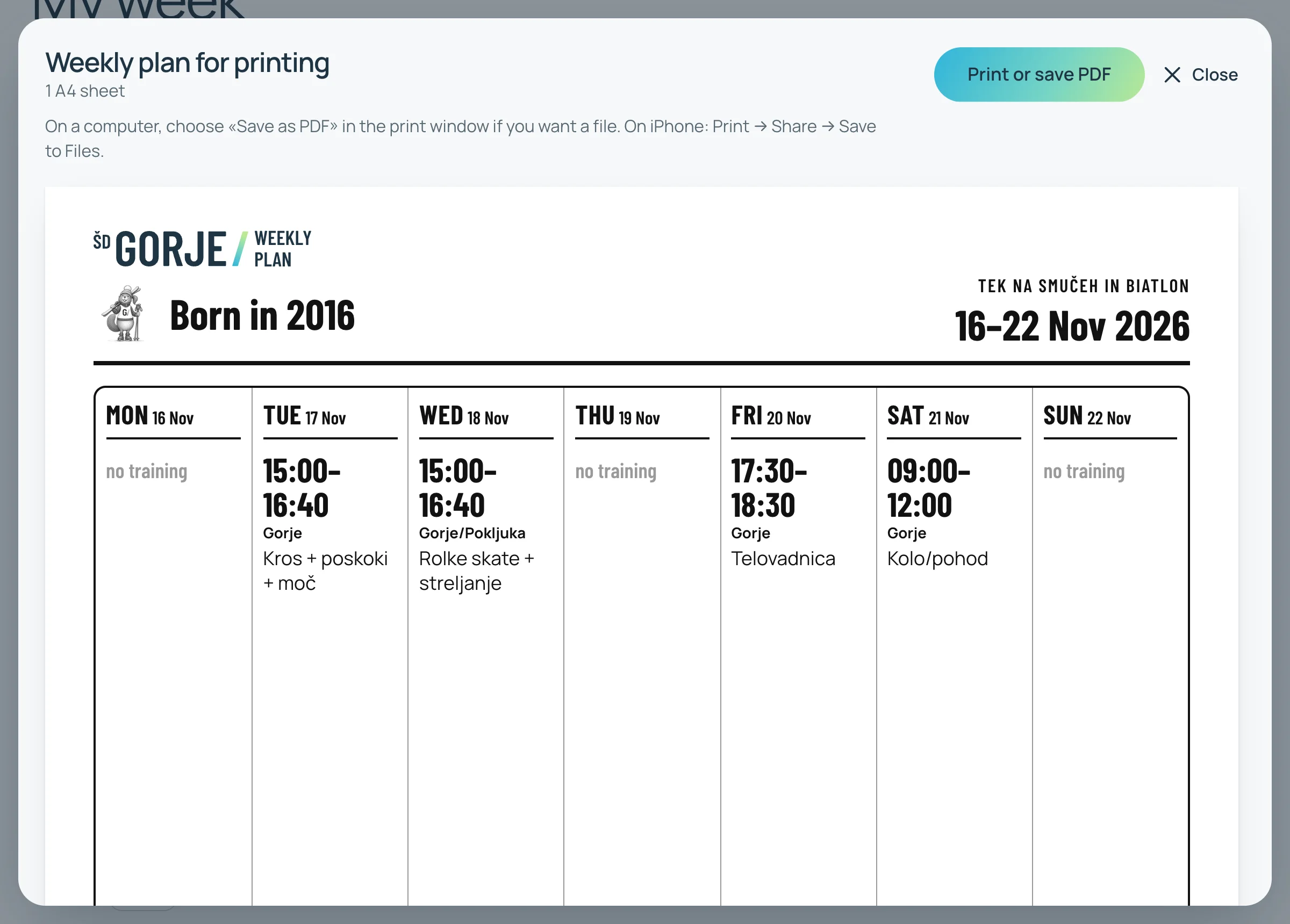
The A4 sheet has the club mark, the group name and the week on top, the coach’s message below. One sheet always holds the whole week.
Computer
- In My week tap Print or save PDF.
- The sheet opens as it will look on paper. Tap Print or save PDF again.
- To print: pick your printer and press Print.
- PDF: under «Destination» or «Printer» pick Save as PDF and press Save.
iPhone
- In My week tap Print or save PDF.
- The sheet opens as it will look on paper. Tap Print or save PDF again.
- To print: pick the printer and tap Print.
- PDF: tap the icon Share (a square with an arrow) at the top and pick Save to Files.
Android
- In My week tap Print or save PDF.
- The sheet opens as it will look on paper. Tap Print or save PDF again.
- Open the printer list at the top.
- To print: pick the printer. PDF: pick Save as PDF and tap the round button PDF.
The labels in the window depend on the phone and the browser, so they may differ a little. If it does not work, write to the club.
What if something is wrong
The coach writes the plan and publishes it on the club site. My week shows exactly what was published, for your child’s group.
No week, or the wrong group? Ask the club and we will fix it. The plan of all groups is always on the plan page too.